User guide · Chapter 9
Checkout
Native Rent User Guide 1.2 (2026-10-23). Supersedes the published guide.
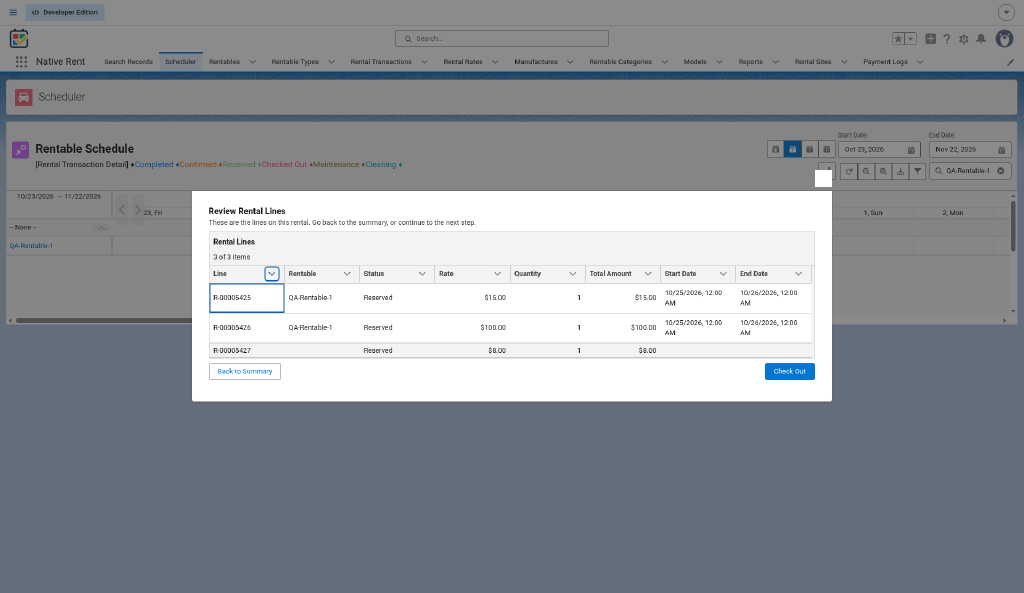
Start from the rental (Check Out), or from the contact's Checkout/Checkin button, which lists the contact's rentals (Select Rental, then Review Rental Lines).
Steps
- Checkout lists lines that are Reserved or Confirmed.
- The table shows only Hourly, Daily, Weekly, Monthly and Yearly lines.
- Turn on Check out all, or select lines.
- Click Next. With nothing selected, an error shows and you stay on the screen.
Rules
- Lines are re-read before saving. A line already checked in or cancelled in another tab is not reset.
- Tax, Admin Charge and Service lines go with the selected Rentables they belong to. Charges linked to no Rentable go with the first checkout.
- Check out all sets the rental to Checked Out when at least one line was checked out.
- A partial checkout changes the rental status only when no Rentable lines are left to check out.
- Rental not found or nothing left to check out ends with a message.
Checkout does not create a rental. Booking does.
Source: decision-log.md 2026-10-20, 2026-10-22.