User guide · Chapter 10
Check-in
Native Rent User Guide 1.2 (2026-10-23). Supersedes the published guide.
You can also open check-in from a Rentable: Rental Transactions → select the rental → Review Rental Lines → Check In.
Steps
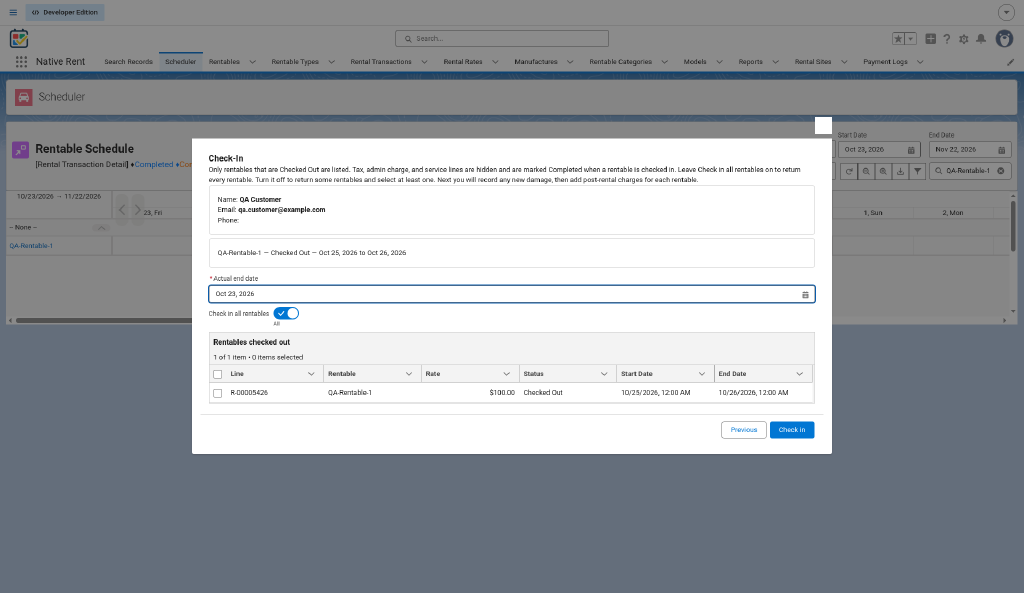
- Check-In: enter the actual end (date, or date and time). Pick Rentables or turn on Check in all rentables.
- Extra time: if a line is late, a warning box shows scheduled end, actual end, time over, billed days or hours, rate and amount. Choose Save the extra time, or go back and change the actual end (your entry is kept).
- Weekly, Monthly or Yearly lines: pick which Pre-Rental rate bills the extra time. A Weekly, Monthly or Yearly pick is prorated per day (rate / 7, 30 or 365) and billed as a Daily line. Example: Weekly 900 for 4 days late = 514.29.
- Damage Check: for each returned Rentable, add damage records and attach photos as Files. Out of Service is the only extra question (default off).
- Post-Rental Charges: pick post-rental rates for the Rentable. Columns: Charge Type, Charge Name, Rate, Rate Notes.
- Tax is added (chapter 7).
- Partial check-in: if Rentables are still out, choose Check in more rentables or Finish.
- Check-In Summary. Finish opens the rental in the same tab.
Rules
- Tax, Admin Charge and Service lines are hidden but completed.
- The rental becomes Completed when no Rentable line is still open.
- Nothing left to check in ends with a message.
- Extra time is charged at check-in, not checkout.
- Daily extra time uses Extra Time Hours Per Unit as the day length (blank = 24). Grace Hours (blank = 1) and Prorate Extra Time apply as in chapter 2, Rental day count; it is not fixed 24-hour blocks.
- On Native Rent mobile, a U.S. driver’s license barcode scan can populate renter/guest fields at check-in or check-out (package 1.89). See chapter 3.
Source: decision-log.md 2026-10-19 to 2026-10-22; process-map.md; customer release email 2026-08-06 (1.89 barcode scanner).