

NC Date Time Slots
Not yet released: this component will ship in an upcoming Native Rent package version.
NC Date Time Slots shows a week of days and the time slots of the chosen day. People pick one slot by default, or several if you set Selection Mode to multi. It outputs the Start Date/Time, End Date/Time, Selected Date, and Selected Slots.
Use it when someone books a pickup, a drop-off, or another appointment on a Rentable, and booked times should be blocked.
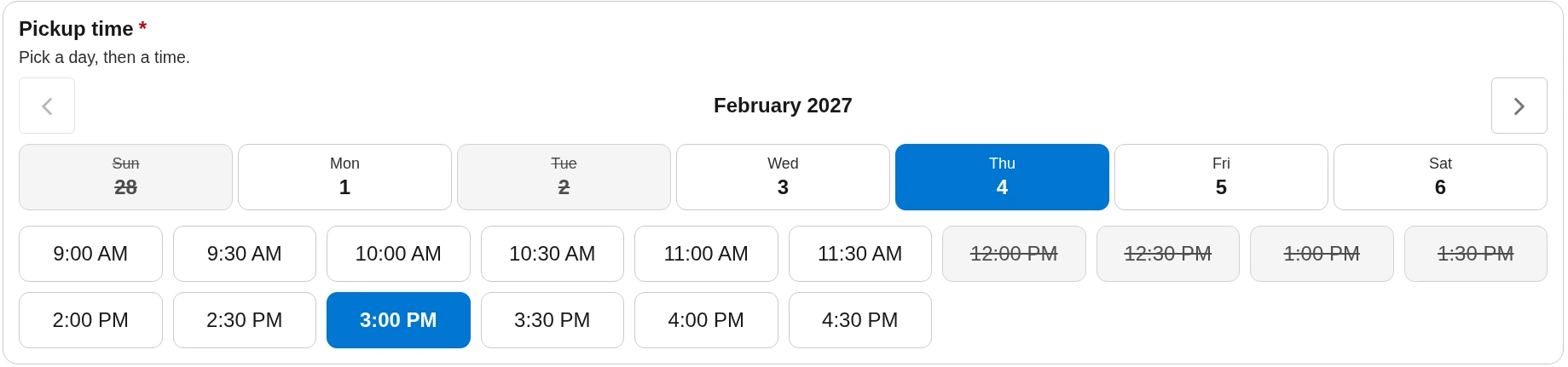
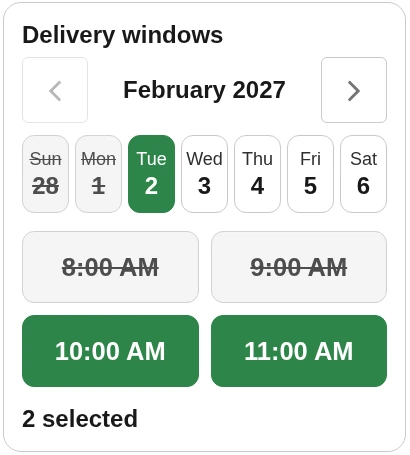
Layouts
| Layout | API value | What the user sees | Example |
|---|---|---|---|
| Auto | auto | Large two-column blocks on a phone or when the component is under 600 px wide. A slot grid on a wider screen. | A pickup screen used on desktop and phone. |
| Grid | grid | A compact slot grid. The grid becomes two columns under 600 px. | A wide desktop booking panel. |
| List | list | Large two-column blocks for each time. | A narrow column or a phone. |
The week strip always starts on Sunday. Previous week and Next week move the strip. The title is the month and year of that week.
Days and time slots
Slots run from Start Time to End Time in steps of Slot Length. Blank Start Time uses 09:00. Blank End Time uses 17:00. For example, 09:00 to 17:00 in 30-minute steps gives 16 slots. Times you type, and list entries that have no time zone, use the time zone in the user's Salesforce settings, not the device clock. A slot picked at 9:00 shows as 9:00 when Flow shows that date/time later.
These slots cannot be picked. They are greyed out and struck through:
- slots whose start time has already passed, and days before today
- days outside Earliest Date and Latest Date
- blocked slots
A day with no free slot is disabled in the strip. The screen opens on the first day that has a free slot, looking up to 60 days ahead. If none is free, it opens on today, or on Earliest Date if that is later.
One slot or several: Selection Mode single (the default) picks one slot. Tapping it again clears it. With multi, people tap several slots, and a count such as "3 selected" shows. Start Date/Time is then the earliest start, and End Date/Time is the latest end, even if there is a gap between picks. Every picked slot is listed in Selected Slots.
Navigate After Selection works with single selection only. After a slot is picked, the flow can move on, so you can hide the screen footer buttons.
If Start Time is not before End Time, a time cannot be read, or the slot length does not fit between them, the component shows a setup message instead of the slots.
Blocked slots
Blocked slots can come from three sources, used together:
- Blocked Slots is a comma-separated list. A day (
2026-12-24) blocks the whole day. A slot start (2026-12-01T10:00) blocks one slot. A start/end pair (2026-12-01T10:00/2026-12-01T12:00) blocks every slot it overlaps. - Blocked Slots (Collection) is a Text collection with entries in the same format.
- Blocked Records is a record collection, for example Events or appointments from Get Records. The fields are StartDateTime and EndDateTime unless you set Blocked Start Field and Blocked End Field. A record with no end blocks one slot. Get Records must store those fields. "Automatically store all fields" is not enough.
List entries without a time zone use the user's Salesforce time zone. Flow date/time values that end in Z or an offset, such as record fields and the outputs, are exact instants. The Start Date/Time, End Date/Time, and Selected Slots outputs are Flow date/times in UTC. Selected Date is a local Date: the calendar day of the earliest picked slot in the user's Salesforce time zone. Today, the slot labels, and whole blocked days use the same time zone. If that time zone cannot be read, the device time zone is used.
Add it to a screen
- Add NC Date Time Slots to the screen. Set Label, and turn on Required if a slot is needed.
- Set Start Time, End Time, and Slot Length, or leave them blank for 09:00 to 17:00 in 30-minute steps.
- Optionally set Earliest Date and Latest Date. Map a Blocked Records collection, and set the start and end fields, or leave them blank for StartDateTime and EndDateTime. Add more blocked times as a list or a Text collection if needed.
- Set Selection Mode to multi if people can pick more than one slot.
- Map Start Date/Time in and out of the same variable to prefill or read one slot. For several slots, map Selected Slots in and out. Use End Date/Time and Selected Date later in the flow. An empty incoming Selected Slots value doesn't clear existing picks.
Note: Start Date/Time and End Date/Time are already exact Flow date/times. Flow shows them as the time the user picked in the user's Salesforce time zone. Use them as they are. Do not pass them through a separate time zone or time-adjust step in the flow, or the time shifts twice.
Example
A pickup time for a Rentable:
- Start Time
08:00, End Time18:00, Slot Length60. - Earliest Date
{!$Flow.CurrentDate}. - Blocked Records: the Rentable's Events or appointments, from Get Records, with StartDateTime and EndDateTime stored.
- Required on.
- Map Start Date/Time and End Date/Time into the new reservation.
Validation
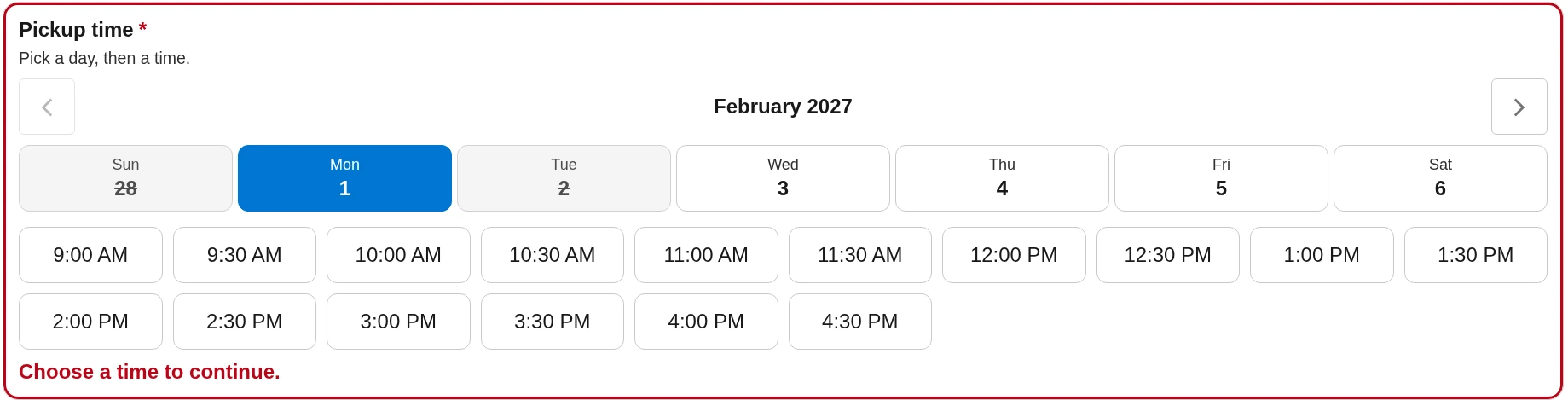
Next is blocked when the slot is required and nothing is picked. The component shows "Choose a time to continue." If a prefilled slot is now blocked or its start time has passed, Next shows "That time isn't available any more. Choose another time." You can replace the required text with Required Message. The message shows under the component, not as a Flow error.
Until a slot is picked, Start Date/Time, End Date/Time, Selected Date, and Selected Slots are sent to the flow as empty (null), not as empty text.
Phone and desktop
Auto shows large two-column blocks on a phone or when the component is under 600 px wide, and a slot grid on a wider screen. Layout Grid also becomes two columns under 600 px. Day, slot, and week buttons are at least 44 px tall. 44 px touch targets also apply at 600 px or less, on a phone, or on a touch screen. Map Start Date/Time or Selected Slots in and out of the same variables to keep the picks if the screen is re-created. An empty incoming Selected Slots value doesn't clear existing picks. NC Date Time Slots has no Color Map.
Day and slot buttons have full names, such as "Thursday, March 4, 10:00 AM to 10:30 AM." Unavailable times are announced as "Unavailable."
Limits
- Days before today cannot be picked, even if Earliest Date is earlier.
- A slot can't be picked once its start time has passed.
- The week strip always starts on Sunday.
- The first free day is only searched up to 60 days ahead.
- Get Records must store the blocked start and end fields.
- Slot times and list entries without a zone use the user's Salesforce time zone. Outputs are UTC.
- With multi, Start Date/Time and End Date/Time are the earliest start and the latest end. They are not a continuous range if some slots in between were not picked. Use Selected Slots for every pick.
- An empty incoming Selected Slots value doesn't clear existing picks.
- Selected Date is a local Date, not a UTC date/time.
Properties
| Property | API name | Default | Description |
|---|---|---|---|
| Label | fieldLabel | (blank) | Question or field label shown above the dates. |
| Help Text | helpText | (blank) | Optional hint under the label. |
| Required | required | false | Block Next until a time slot is selected. |
| Required Message | requiredMessage | (blank) | Optional. Blank uses the translated default. |
| Disabled | disabled | false | Show the dates and times read-only. |
| Start Time | startTime | (blank) | First slot of each day, e.g. 09:00 or 9:00 AM. Blank uses 09:00. In the user's Salesforce time zone (Settings > Time Zone), not the device clock. |
| End Time | endTime | (blank) | When the last slot of each day must end, e.g. 17:00 or 5:00 PM. Blank uses 17:00. |
| Slot Length (Minutes) | slotMinutes | 30 | Length of each slot in minutes (5-720). Default 30. |
| Earliest Date | minDate | (blank) | Optional. Days before this cannot be picked. Days before today never can. |
| Latest Date | maxDate | (blank) | Optional. Days after this cannot be picked. |
| Blocked Slots | blockedSlots | (blank) | Optional comma-separated list. A day (2026-12-24) blocks the whole day; a start (2026-12-01T10:00) blocks one slot; a start/end pair (2026-12-01T10:00/2026-12-01T12:00) blocks every slot it overlaps. Times are in the user's Salesforce time zone unless the value ends in Z or an offset. |
| Blocked Slots (Collection) | blockedSlotsCollection | (blank) | Optional Text collection with entries in the same format as Blocked Slots. |
| Blocked Records | blockedRecords | (blank) | Optional record collection of booked periods (for example Events or appointments). Each record needs a start and an end date/time (see Blocked Start Field and Blocked End Field). |
| Blocked Start Field | blockedStartField | (blank) | Date/time field API name for the start on each blocked record. Blank uses StartDateTime. |
| Blocked End Field | blockedEndField | (blank) | Date/time field API name for the end on each blocked record. Blank uses EndDateTime. A record with no end blocks one slot. |
| Selection Mode | selectionMode | single | single (default) or multi. Multi: tap several slots; Start Date/Time is the earliest start and End Date/Time the latest end. |
| Layout | layout | auto | auto (default), grid or list. Auto: large two-column blocks (list) on phones or under 600px, a slot grid on wide screens. |
| Accent Color | accentColor | (blank) | Selected and focus color, e.g. #0B5CAB. Hex, rgb() or a color name. Lightened or darkened until it reaches 3:1 against the tile color (or the theme surface if no tile is set). Also tints the focus ring and the selected/highlighted row. Blank follows the org theme (and dark mode). |
| Background Color | backgroundColor | (blank) | Optional color behind the whole component. |
| Text Color | textColor | (blank) | Optional. On choices and results: used as-is on the theme surface, or checked at 4.5:1 against a tile color if one is set. On the label and help: checked at 4.5:1 against the background if one is set; otherwise dark or white text is picked automatically. |
| Text Size | size | medium | small, medium (default), large or xlarge. |
| Corner Shape | shape | rounded | rounded (default), square or pill. |
| Alignment | align | start | start (default), center or end. |
| Navigate After Selection | navigateOnSelect | none | none (default), next, back, finish or pause. Single selection only: after a slot is picked the Flow can move on, so you can hide the screen footer buttons. Next and Finish check Required first; Next becomes Finish on the last screen. |
| Available Actions | availableActions | (blank) | Set by Flow; do not map. |
Outputs
| Output | API name | Type | Direction | Description |
|---|---|---|---|---|
| Start Date/Time | startDateTime | Date/Time | Input and output | Start of the selected slot (multi: the earliest). Map in to prefill a single slot, out to read the choice. Empty until a slot is picked. |
| End Date/Time | endDateTime | Date/Time | Output | End of the selected slot (multi: the latest). Empty until a slot is picked. |
| Selected Date | selectedDate | Date | Output | Day of the (first) selected slot. Empty until a slot is picked. |
| Selected Slots | selectedSlots | Text | Input and output | Every selected slot as start/end pairs (UTC), comma-separated, e.g. 2026-12-01T15:00:00.000Z/2026-12-01T15:30:00.000Z. Map in to prefill several slots. |
Shared behavior
Layout and width, required messages, colors, navigation, data sources, translations, accessibility, and the setup panel work the same way on every component. See NC screen components.
To copy this component's settings to another screen, use Copy settings at the top of its setup panel. See Copy settings.