

NC QR Code
Not yet released: this component will ship in an upcoming Native Rent package version.
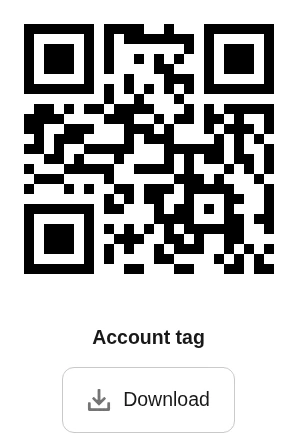
NC QR Code shows a QR code or a Code 128 barcode for a text, such as a record Id, a URL, or a Rentable code. The code is drawn in the browser as a sharp SVG. It works offline and calls no external service. An optional caption can appear under the code, and an optional Download button can save a PNG on desktop.
Use it for a QR label on a Rentable that staff can scan later.
Code types
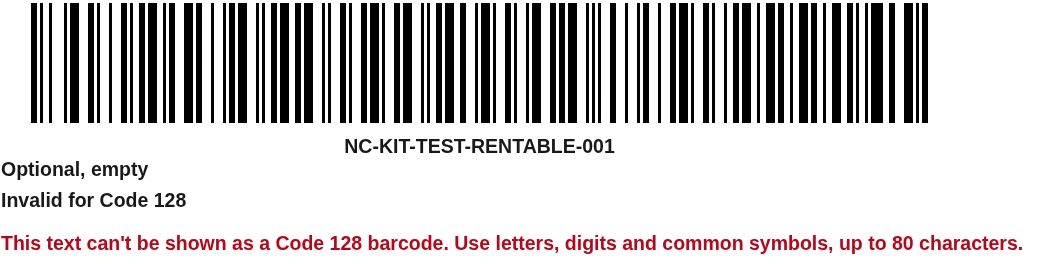
Code Type is qr (the default) or code128.
The code is always black on white, with a quiet zone. Theme colors do not apply to the code, so it stays readable in light and dark themes.
QR:
- Error Correction can be L (7%), M (15%, the default), Q (25%), or H (30%). Higher levels survive more damage but make a denser code.
- A QR code holds up to about 2,300 characters at level M (QR standard limit; less for non-Latin text).
- Text with accents or emoji works.
Code 128:
- Takes letters, digits, and common symbols (printable ASCII), up to 80 characters.
- An even-length value of only digits is encoded as compact digit pairs (code set C).
- The barcode is always at least 2 px per bar.
Size: Code Size is the QR code's width and height (96 to 512 px, default 200). For Code 128 it is the minimum width. The code is never wider than the screen.
Caption is optional text under the code. The caption shows exactly as given.
Download: With Show Download Button on, a Download button saves the code as a PNG, with whole pixels per module so it prints sharply. The button shows on desktop only. It is hidden on phones and tablets, and when the browser window or the code area is 600 px wide or less, for example a narrow or zoomed-in desktop window. The file name is Download File Name, or qr-code.png or barcode.png if that is blank.
Alignment is start, center (the default), or end.
NC QR Code has no layout, navigation, or accent color settings. It only shows a code.
The image has an accessible name: "QR code: " plus the value, or "Barcode: " plus the value.
Add it to a screen
- Add NC QR Code to the screen. Set Value to Encode to a record Id, or a text field such as a serial or asset number.
- Set Code Type to QR or Code 128. For a QR code, set Error Correction if you need more than the default M.
- Optionally set Caption, Code Size, and Alignment.
- Turn on Show Download Button if staff should save a PNG on desktop. Optionally set Download File Name.
- Turn on Required if Next should wait until there is a code to show.
Example
A QR label for a Rentable:
- Value: a record Id, or a text field such as a serial or asset number.
- Caption: the Rentable name, which shows exactly as given.
- Error Correction Q.
- Show Download Button on.
- Staff can scan the label later with NC Device Capture (barcode mode, Allowed Types QR).
Validation
A value that cannot be encoded shows "This text is too long for a QR code." or "This text can't be shown as a Code 128 barcode. Use letters, digits and common symbols, up to 80 characters." under the component. These messages block Next only when Required is on.
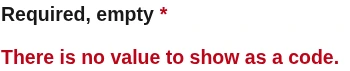
An empty value that is not required shows nothing and does not block Next. "There is no value to show as a code." appears only when Required is on, when the user taps Next. You can replace that text with Required Message. The message shows under the component, not as a Flow error.
Phone and desktop
The code shrinks so it is never wider than the screen. The Download button shows on desktop only. It is hidden on phones and tablets, and when the browser window or the code area is 600 px wide or less. The button is at least 44 px tall. NC QR Code has no Layout Auto, no Navigate After Selection, and no Color Map or accent color.
Limits
- The code is generated in the browser. It works offline and calls no external service.
- Code 128 accepts printable ASCII only, up to 80 characters.
- A QR value that is too long for the chosen error correction level cannot be shown.
- The Download button shows on desktop only. It is hidden on phones and tablets, and when the browser window or the code area is 600 px wide or less.
- Theme colors never apply to the code itself.
Properties
| Property | API name | Default | Description |
|---|---|---|---|
| Label | fieldLabel | (blank) | Optional label shown above the code. |
| Help Text | helpText | (blank) | Optional hint under the label. |
| Value to Encode | value | (blank) | The text in the code, e.g. a record Id, or a text field such as a serial or asset number. QR: up to about 2,300 characters at level M. Code 128: letters, digits and common symbols (printable ASCII), up to 80 characters. |
| Code Type | codeType | qr | qr (default) or code128 (a 1D barcode). |
| Error Correction | errorCorrection | M | QR only: L (7%), M (15%, default), Q (25%) or H (30%). Higher levels survive more damage but make a denser code. |
| Code Size (px) | codeSize | 200 | QR: width and height in pixels (96-512, default 200). Code 128: minimum width; the barcode is at least 2px per bar. Never wider than the screen. |
| Caption | caption | (blank) | Optional text under the code, e.g. the asset name or the value itself. |
| Show Download Button | showDownload | false | Show a Download button (PNG). Desktop only; hidden on phones, tablets, and when the code area or browser window is 600px wide or less. |
| Download File Name | downloadFileName | (blank) | Optional. Blank uses qr-code.png or barcode.png. |
| Alignment | align | center | start, center (default) or end. |
| Required | required | false | Block Next while there is no code to show (Value to Encode is empty or can't be encoded). |
| Required Message | requiredMessage | (blank) | Optional. Blank uses the translated default. |
NC QR Code has no outputs. Value to Encode is an input only.
Third-party code
NC QR Code draws codes in the browser. It uses two MIT-licensed parts that ship in the kit. Neither one calls an external service.
- QR encoder: Project Nayuki's QR Code generator library (MIT License, https://www.nayuki.io/page/qr-code-generator-library). It lives in the shared module
ncQrEncoder, which is not placed on screens. The copyright and permission notice is in that module. - Code 128 encoder: written for the kit. Its 107-pattern table comes from JsBarcode (MIT License, © 2016 Johan Lindell, https://github.com/lindell/JsBarcode). That is noted in the same module.
Shared behavior
Layout and width, required messages, colors, navigation, data sources, translations, accessibility, and the setup panel work the same way on every component. See NC screen components.
To copy this component's settings to another screen, use Copy settings at the top of its setup panel. See Copy settings.