User guide · Chapter 5
Booking a rental
Native Rent User Guide 1.2 (2026-10-23). Supersedes the published guide. Booking entry points for Native Rent package version 1.95.
You can book several Rentables in one rental. Start from either special UI, or from a Rentable record.
Entry points
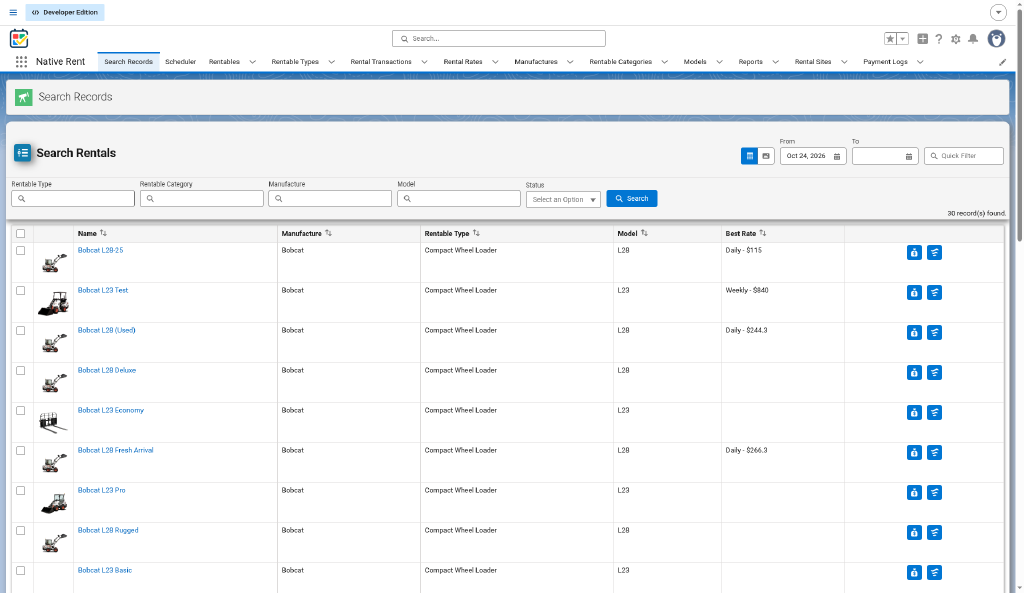
Search Records
Open the Search Records page, filter and select Rentables, then use Start Rental (label in the guide and packaging example) to open Multi_Rental_process. See chapter 14 for filters, field sets, and component parameters.
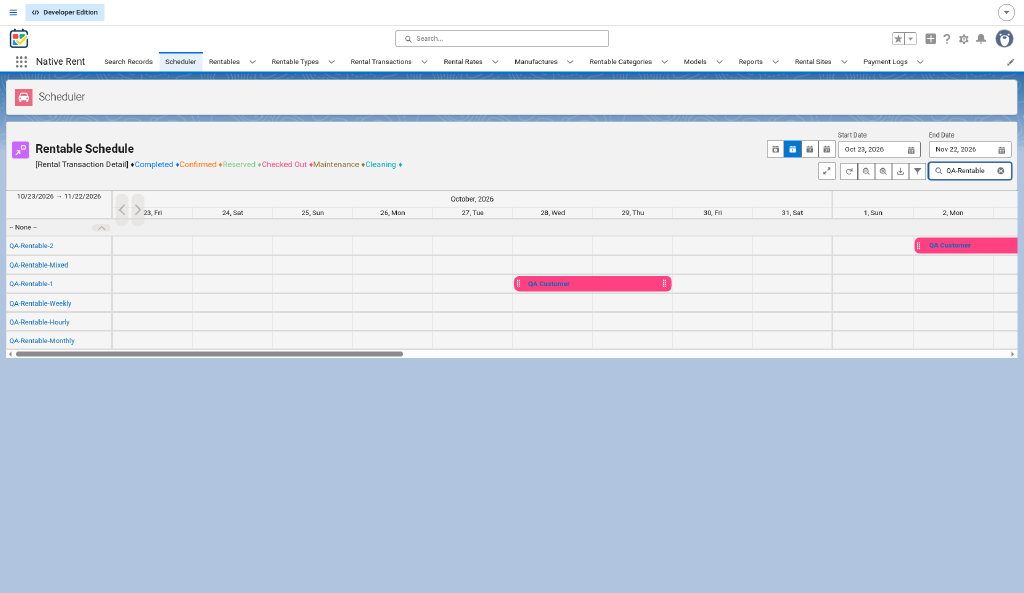
Scheduler (Native Planner)
Book from the Native Planner scheduler (drag-and-drop / calendar). See chapter 1. Checkout Finish may open the rental in a new tab when checkout was started from the Scheduler (Source: Steward-accepted check-in/checkout release note; QA).
Steps
- Pick or create the customer contact.
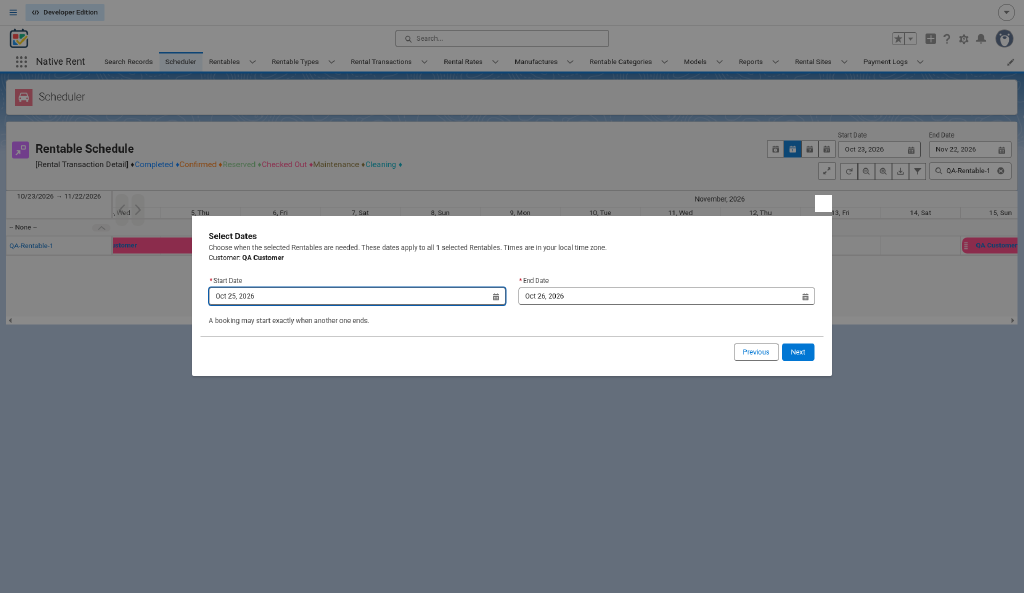
- Select Dates: dates only, or date and time in date-and-time mode.
- For each Rentable, the flow checks availability.
- A line blocks only a real overlap: its start is before your end and its end is after your start.
- Cancelled and Completed lines never block.
- If the Rentable is busy or has no active rate, Rentable Not Available shows the reason.
- If none of the selected Rentables is free, a warning asks you to pick new dates.
- Rentable Still Checked Out: if the Rentable is still out from an earlier rental that ended before your start, a warning names it. You can continue booking or skip it.
- Choose rates. Under 24 hours in date-and-time mode uses the Hourly rate when there is one.
- Add-Ons: pick add-ons, then Add-On Quantity for non-serialized ones. The table shows In Stock.
- Fees: Required Fees (added automatically) are listed. Pick any elective fees.
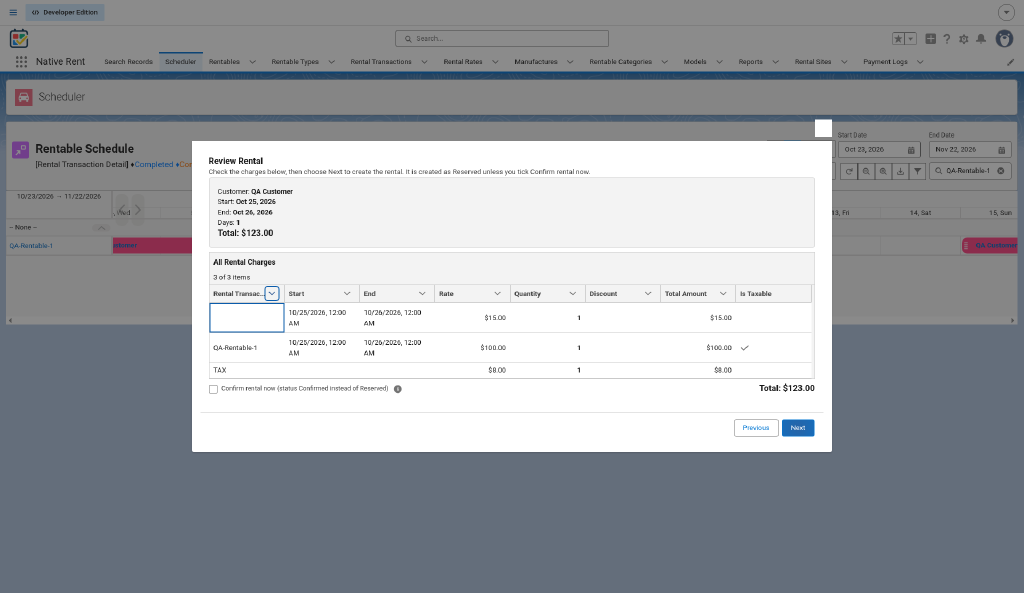
- Review Rental: summary of customer, start, end, days and Total. All Rental Charges shows each line with local Start, End and Is Taxable. Confirm.
- Rental Created shows the new rental name. Open rental opens it in the same tab, or Finish ends.
Notes
- Every screen has Next or Finish.
- Errors go to a fault screen with the message.
- With Multi_Rental Active v20+ (packaging), booking does not take add-on stock; stock moves at checkout / check-in. Booking shows every charge except Post-Rental; blank Charge Due charges stay. See release notes for Native Rent version 1.95.
Source: decision-log.md 2026-10-21, 2026-10-22, 2026-10-23; published guide / AA (Search Records / Scheduler entry); Steward-accepted check-in/checkout and multi-rental notes.