How to · Apartment rental
Apartment rental: from install to a working system
Native Rent how-to (2026-10-23). Example industry: apartments / property rental. Object and field names stay generic (Rentable, Rental Rate, Rental Transaction). Example values may be apartment-flavored (Unit 4B, category Residential, type 1-Bedroom).
This is one cohesive path: install and access → minimum data (Rentables + rates) → smoke the lifecycle → optional polish. For field-level detail, use the User guide.
Packaging demo records (nativerent-dev-ed, 2026-10-24): Unit 4B — 412 N Wells St —
a01a500002VJhftAAD(A-0000004142); Unit 2A — 412 N Wells St —a01a500002VJcYCAA1(A-0000004143). Manufacturer Harbor Residences (optional); Category Residential. Amounts below are demo dollars.
What you'll do
- Confirm the package is installed and users can open Native Rent.
- Create at least one Rentable (a unit) and one active Rental Rate — the minimum for a working system.
- Book a rental for a contact, take a payment if you need one, check out, and check in.
- Optionally add Manufacturers, Models, Categories, and Types later if you want classification or shared images.
Part A (install and access) is also on the hub. Start at Part B after Part A on the hub.
Part A — Install and access
Shared install steps also live on the hub (Get to a working system); prefer the hub for shared install steps.
What you'll do
Get the package ready for everyday users: permission set, folders, dashboards, and date mode suited to leases.
Assumptions
- The Native Rent managed package (
nativerent__) is already installed from AppExchange (or your packaging org). This guide does not invent package version numbers. - You are a Salesforce admin in the subscriber org (or packaging org used for demos).
A1. Assign the Native Rent permission set
- In Setup, open Permission Sets.
- Open Native Rent (API name
Check_In). - Assign it to every user who will book, check out, check in, or run Native Rent reports.
It grants check-in, damage records, the classes the flows call, Edit on Rentable Quantity, and Read on report fields such as Booked Days, Payment Balance, and Is Overdue. It ships to subscriber orgs in the next package version; until then the released Check_In still covers check-in users. See user guide chapter 2 and subscriber install notes.
A2. Share report and dashboard folders
- Share the Native_Rent_Reports and Native_Rent_Dashboards folders with the users who need them.
- After each upgrade that adds NR_Money or NR_Utilization, share again if needed.
A3. Set the dashboard running user
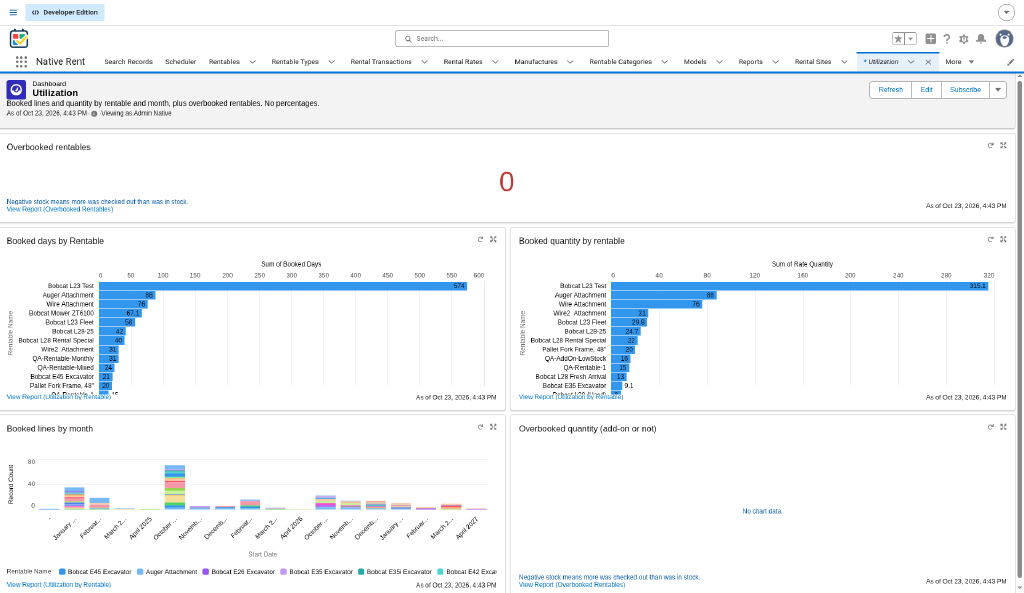
The five dashboards (NR_Rental_Operations, NR_Rental_Revenue, NR_Daily_Operations, NR_Money, NR_Utilization) are "Run as specified user" and ship with no named running user.
For each dashboard:
- Open it, click Edit, then the gear (Properties).
- Under View Dashboard As, choose Me or a user who can see all Native Rent records.
- Save, then Refresh.
Until this is done, the dashboard runs as the installing user.
A4. Native Rent Settings (apartment leases)
Open Setup → Custom Settings → Native Rent Settings (NativeRentSettings__c).
| Setting | Apartment tip |
|---|---|
Use Date and Time (Use_Date_Time__c) |
Leave Off for date-only lease starts and ends. Screens ask for dates; a date-only return ends at 11:59:59 PM local on the return day. Turn On only if you need clock times (short stays, hourly). |
| Grace Hours, Prorate Extra Time, Extra Time Hours Per Unit | Used at check-in for late returns. Defaults: grace 1 hour (blank = 1), prorate off, hours per day blank = 24. See chapter 2. |
| Checkout Email Template | Stores a template DeveloperName. Live checkout does not send email yet (user guide chapter 16). |
Other checklist items after upgrade (Restockable on layout, Pro-Rating on rates, Damage_Location picklist): see subscriber install notes. Per-rate Pro-Rating checkbox is not built. Check-in returns stock for Restockable add-ons when that Check In version is active (older Active Check In does not).
A5. Confirm packaged flows are Active
Booking, payment, checkout, and check-in need the packaged flows Active in your org (for example Multi_Rental_process, NR_Payment_Screen, Checkout_Process, CheckIn_Flow). Confirm they are Active; do not activate Draft versions unless your process owner has accepted them. See chapter 1.
A6. Quick access smoke (before data)
As a non-admin user with the permission set: open a Rentables list or Search Records, and open one dashboard after the running user is set. Fix access before you build data.
Part B — Build the data model (apartment example)
What you'll do
Create the minimum records so search and booking work: Rentables (units) and Rental Rates. Classification (Manufacturer, Model, Rentable Category, Rentable Type) is optional — apartments often skip Manufacturer entirely. Add classification later only if you need filters, reporting groups, or shared model images.
Minimum path (do this first)
Rentable (each unit) → Rental Rate (at least one Active time rate)
         ↓
   optional later: Manufacturer, Model, Rentable Category, Rentable Type
You do not need Manufacturer → Model → Category → Type before you can rent a unit.
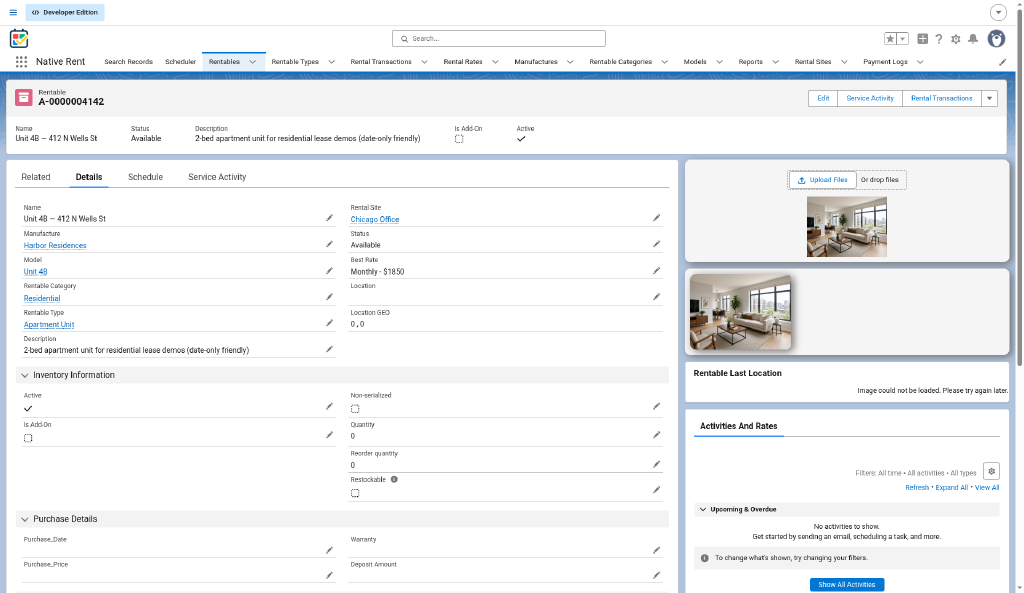
B1. Create Rentables (each apartment unit)
A Rentable is one item you rent out — here, one unit.
- Open the Rentables tab. Click New.
- Set Name to something staff recognize, for example
Unit 4B — 412 N Wells St. - Leave Is Add-On unchecked for the unit itself.
- Fill other fields your org uses (Description, Status, Deposit Amount, and so on). See chapter 3 and chapter 15.
- Save.
Repeat for each unit you will book in the smoke test (start with one).
Add-ons (optional): parking, furniture kits, or similar can be separate Rentables with Is Add-On checked. For stock add-ons, set Quantity. Restockable marks add-ons that return to stock at check-in when the Check In version that reads Restockable is active in your org (older Active Check In does not return stock yet).
B2. Create Rental Rates for each unit
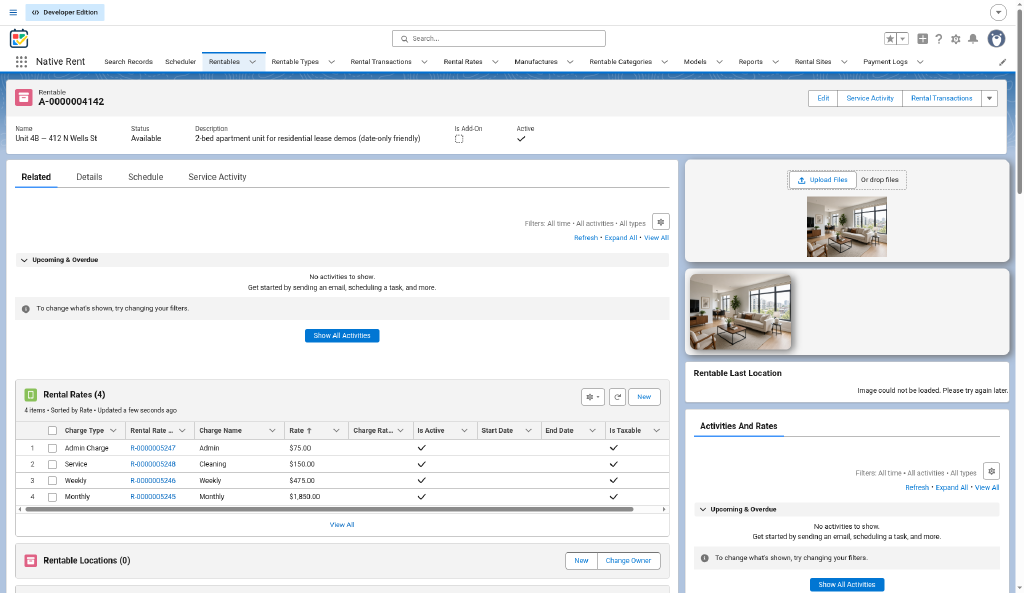
A Rental Rate is a price or fee linked to one Rentable. Booking needs at least one Active time rate (Hourly, Daily, Weekly, Monthly, or Yearly).
- Open the Rental Rates tab (or create from the Rentable). Click New.
- Pick the Rentable (Unit 4B).
- Set Charge Type — for apartments, Monthly is common; Weekly or Daily for short stays.
- Set Rate (demo: Unit 4B Monthly 1850, Weekly 475; Unit 2A Monthly 1450).
- Check Active. Save.
Required and elective fees (recommended for a realistic lease)
Create more rates on the same Rentable as needed:
| Example Charge Name | Charge Type | Demo Rate (4B / 2A) | Notes |
|---|---|---|---|
| Admin | Admin Charge or Service | 75 / 50 | Set Required if every booking must include it. |
| Cleaning | Service | 150 / 120, Post-Rental | Offered at check-in. |
| Tax | Tax | Used with site tax; see chapter 7. |
Also set as needed:
- Charge Due — use Post-Rental for charges offered at check-in.
- Charge Rate % — leave Rate blank and set percent of rental Total for percent fees.
- Is Taxable, One Time Charge, Rate Notes.
Only Active rates are used. Detail: chapter 4 and Set up a Rentable and its rates.
B3. Sanity check (minimum)
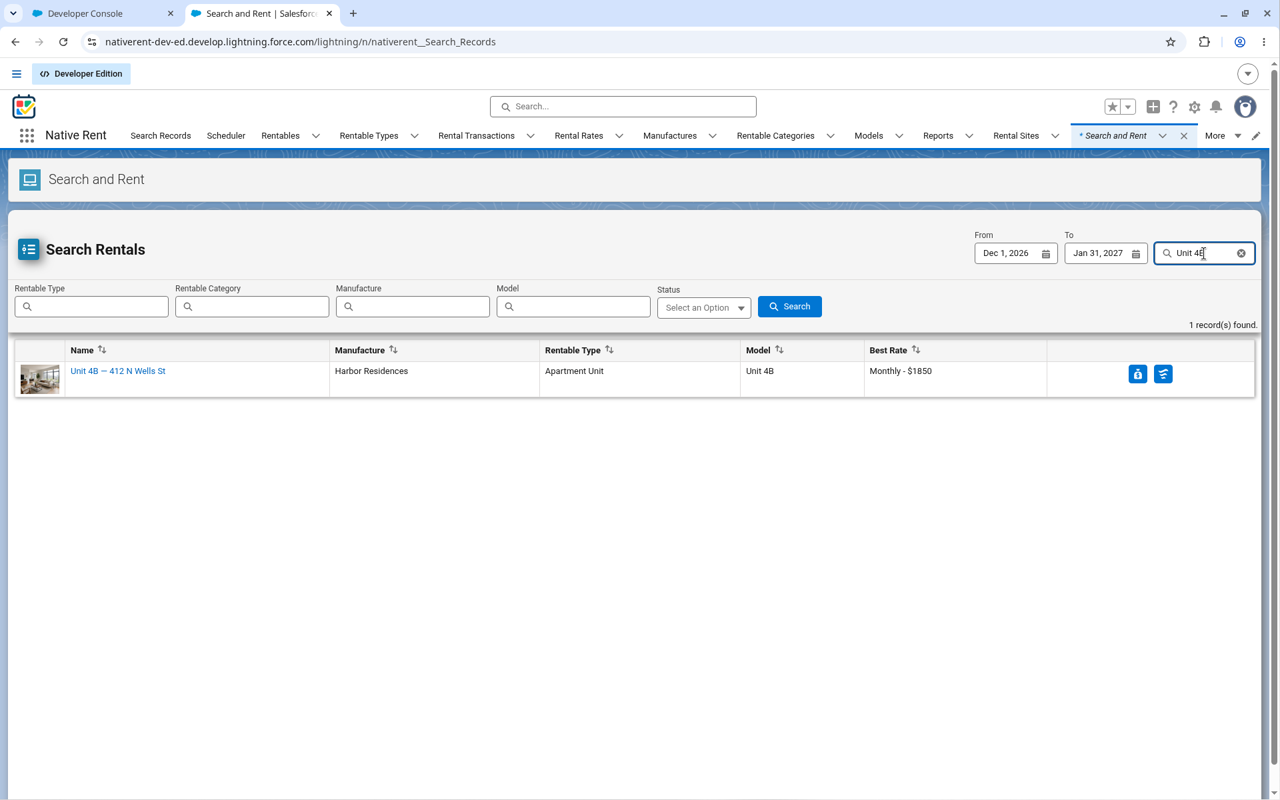
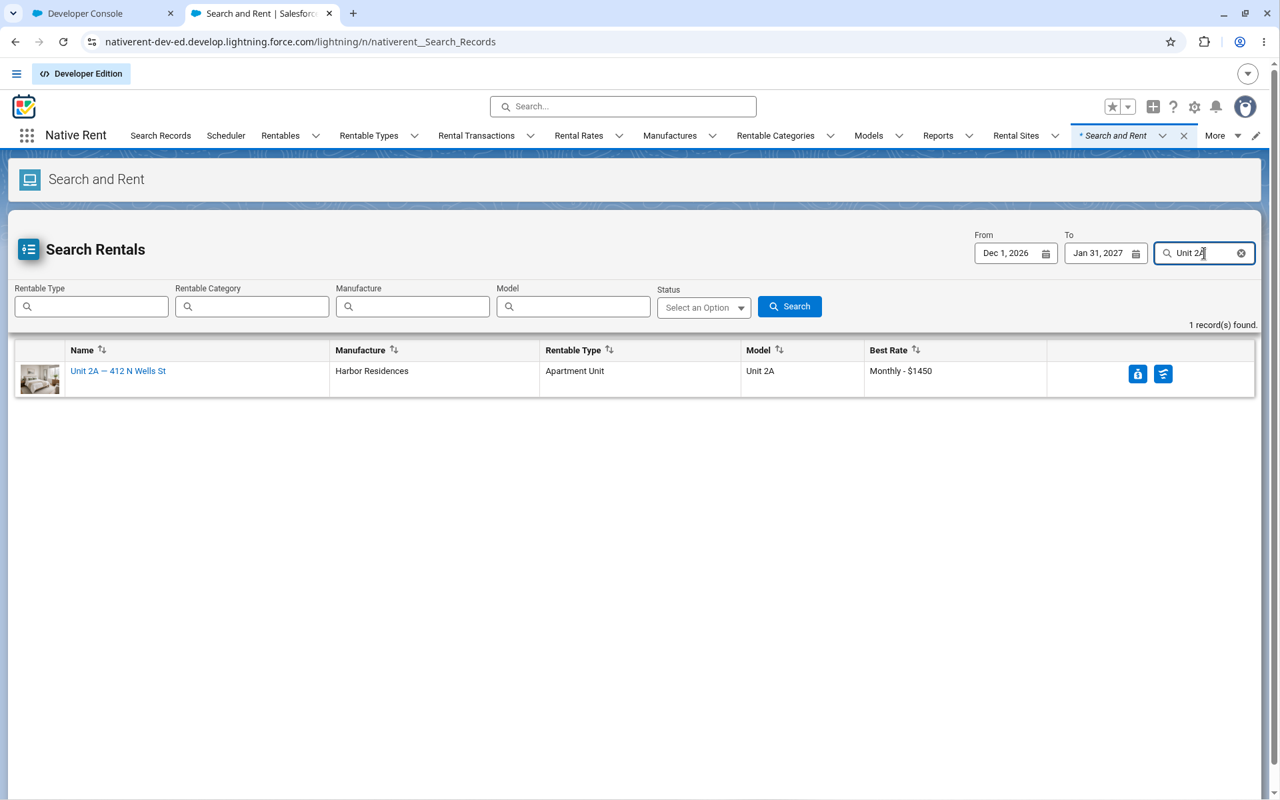
- The Rentable exists and has at least one Active time rate.
- Search or the Rentables list finds Unit 4B.
- You are ready for Part C.
B4. Optional — classification and images
Add these only if you need them. None are required for booking.
| Object | Apartment example | When it helps |
|---|---|---|
| Manufacturer | Often skip for apartments. Example if used: Harbor Residences (packaging demo). |
Branding or migration from an inventory that already has manufacturers. |
| Model | Floor plan name, e.g. Plan A — 1BR. Optional shared model images across related Rentables; not required to book. |
Shared photos across many units of the same floor plan. |
| Rentable Category | Residential |
Filters and reporting groups. |
| Rentable Type | 1-Bedroom, Studio |
Finer filters under a category. Create Category first if you use both. |
If you import later, a published migration order is Account → Manufacturers → Models → Rentable Category → Rentable Type → Rentable → Rental Rates → Rental Locations — optional and not required as a live prerequisite. See chapter 15.
Part C — Working system smoke path
What you'll do
Run one rental end to end for a contact: book → (optional) pay → check out → check in. Use date-only mode unless you turned on date-and-time in Part A.
Confirm the packaged booking, payment, checkout, and check-in flows are Active in your org before you start (see Part A5).
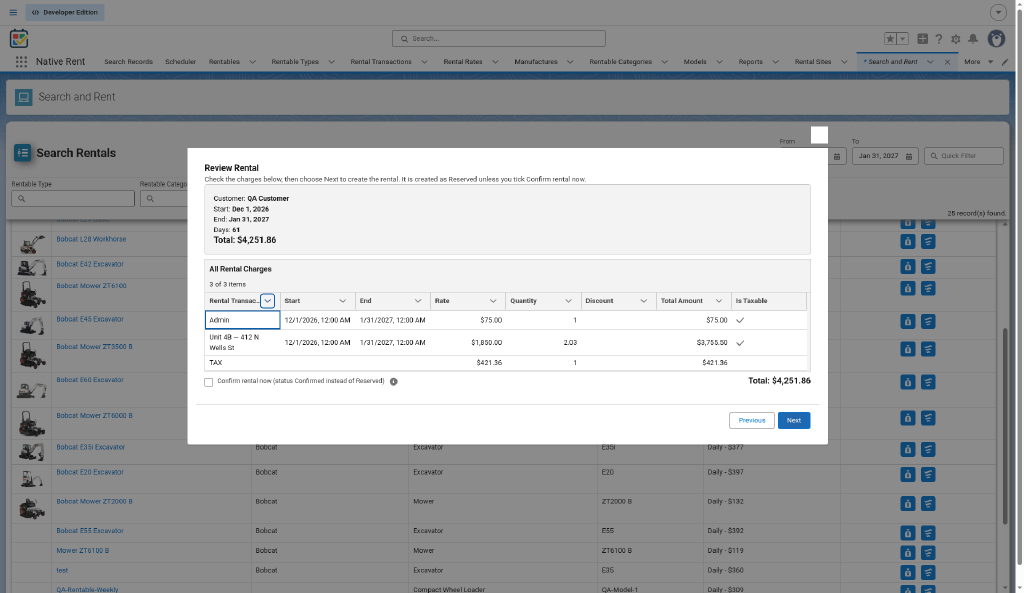
C1. Book one rental
- Start from the Search Records page (example: Start Rental) or from the Rentable. Exact button labels can vary by Lightning page.
- Pick or create the customer Contact.
- Select start and end dates (lease window).
- Choose Unit 4B when the flow checks availability. Cancelled and Completed lines never block; real date overlaps do.
- Choose rates (Monthly if that is what you created). Under 24 hours in date-and-time mode uses Hourly when present.
- Add optional add-ons and elective fees; required fees appear automatically.
- Review and confirm. Open the new Rental Transaction.
Detail: chapter 5.
C2. Take a payment (if applicable)
From the rental, run Payment (NR_Payment_Screen). Exact action label can vary by page layout.
- Enter Amount Received Now, Payment Method, and Payment Status.
- Save. A Payment Log row is created when the save succeeds.
Detail: chapter 8.
C3. Check out
- From the rental, start Check In/Out (Checkout_Process when Reserved or Confirmed), or from the contact’s Checkout/Checkin path.
- Select Reserved or Confirmed lines (or Check out all).
- Next. Lines move to Checked Out when the save succeeds.
Checkout does not create a rental — booking does. Detail: chapter 9.
C4. Check in
For a finished lease (or an early return):
- Start check-in (CheckIn_Flow). Enter the actual end date (or date and time).
- Handle extra time if late (grace and prorate from settings). For Weekly/Monthly/Yearly lines, pick which Pre-Rental rate bills the extra time.
- Damage Check if needed; attach photos as Files.
- Pick any Post-Rental charges; tax is added per chapter 7.
- Finish. The rental becomes Completed when no Rentable line is still open.
Detail: chapter 10.
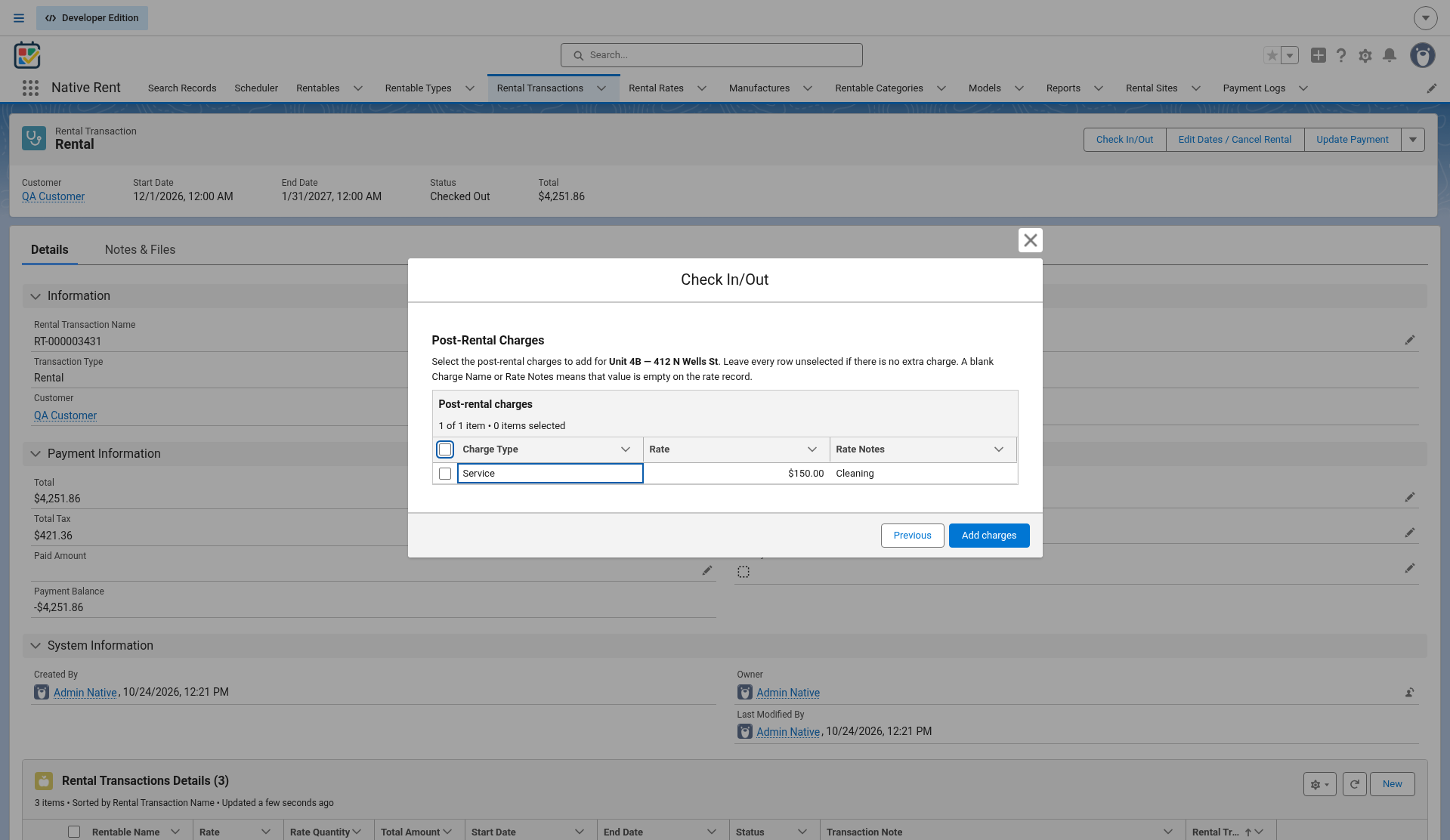
Note (source: QA 2026-10-24): the live Post-Rental Charges table columns are Charge Type / Rate / Rate Notes (not Charge Name); fee labels for these demos are in Rate Notes.
C5. Smoke checklist
- [ ] Non-admin with Native Rent permission set booked Unit 4B.
- [ ] Payment saved (if you tested it) and Payment Log exists.
- [ ] Checkout set lines to Checked Out.
- [ ] Check-in completed the rental (or left a clear partial state you understand).
- [ ] Spot-check Utilization / Booked Days if you use those reports (chapter 13).
Warn (subscriber note): NR_Edit v17 — don’t save date edits on rentals with multi-unit add-ons until the fix ships.
Part D — Optional next
What you'll do
Layer on search, scheduler, reports, and org-specific damage locations after the smoke path works.
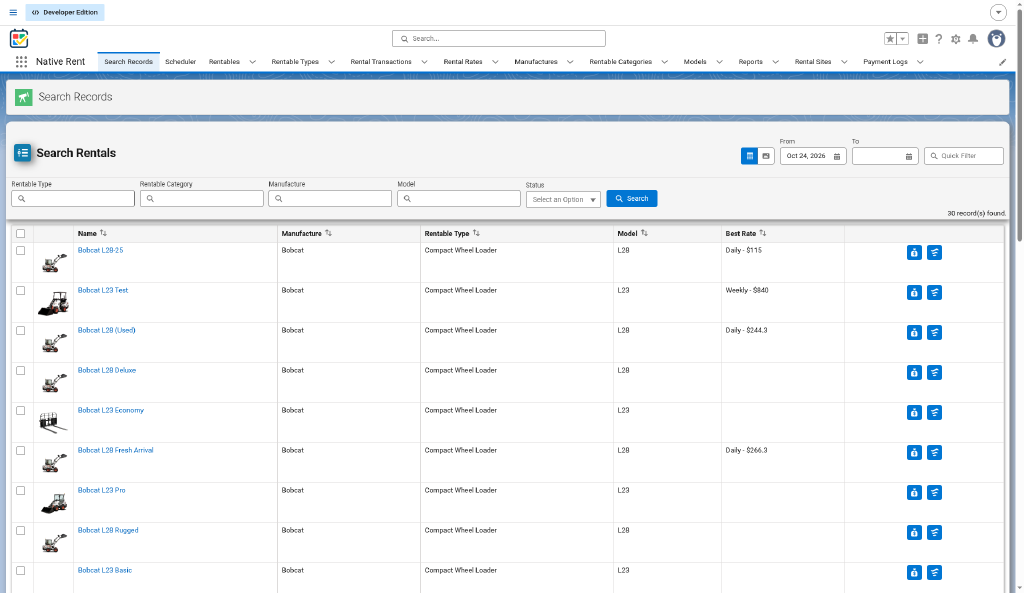
- Search Records — Filterable Rentable finder: Filter Fields / List Fields field sets (add, remove, reorder filters and columns); photos, multi-select into booking (Start Rental → Multi_Rental_process); clone the Lightning page and edit Native Search Records parameters (title, list filter, actions, images, related records). Flexibility: tailor which attributes staff filter on and which columns and flow the page uses. See chapter 14. Parameter edge cases beyond published-guide / packaging page examples are outside this how-to.
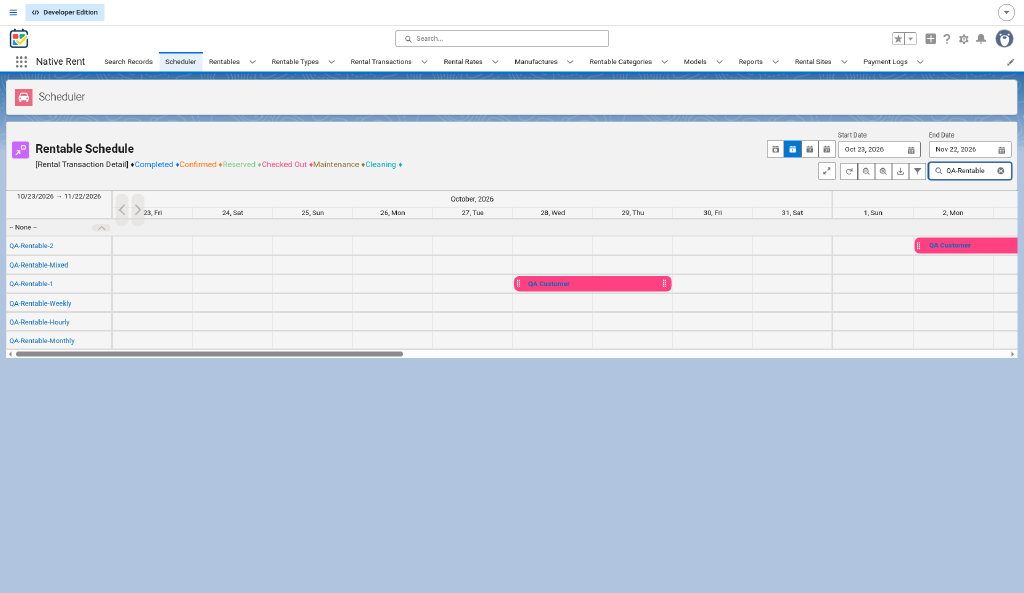
- Scheduler (Native Planner) — separate product: drag-and-drop, color-coded availability, daily/weekly/monthly views, reservations from the scheduler; scheduler popup customizable when enabled. Flexibility: timeline / availability planning vs Search’s attribute filters. See chapter 1 and chapter 15. Points to the Native Planner customization guide. Org-specific Planner setup beyond the published-guide list is outside this how-to.
- Reports and dashboards — Native_Rent_Reports / Native_Rent_Dashboards; chapter 13.
- Damage_Location__c — when the packaged picklist goes generic, installed orgs keep old values. For apartments, deactivate car-oriented values (Hood, Bumper, Windshield) by hand if they appear; add home-relevant values locally. Do not treat car lists as defaults. Source: subscriber install notes.
- Classification — return to Part B4 if you now want Categories/Types or Model images.
Related docs
| Doc | Use |
|---|---|
| User guide | Full object and flow behavior |
| Set up a Rentable and its rates | Short rate setup how-to |
| subscriber install notes | Dashboard running user, upgrade checklist |
| Coming / pending | Items not live yet |
Still open
- Checkout email from Checkout Email Template — not live yet.
- Restockable stock return when that Check In version is active (not in older Active Check In).
- Per-rate Pro-Rating checkbox — not built.
- Demo rates and names on this page are packaging-org examples, not list prices.
New to Native Rent?